Builds
The Altis Dashboard shows the latest builds and deploys for each environment. When you push to an environment’s tracked branch, Altis builds your commit using your build script.
You can find these under the Release tab of the selected Altis Environment.
Cancelling a build
Builds that are still in progress can be cancelled. This is useful if a build was started by mistake, or if you have pushed a fix and don’t want to wait for an older build to finish.
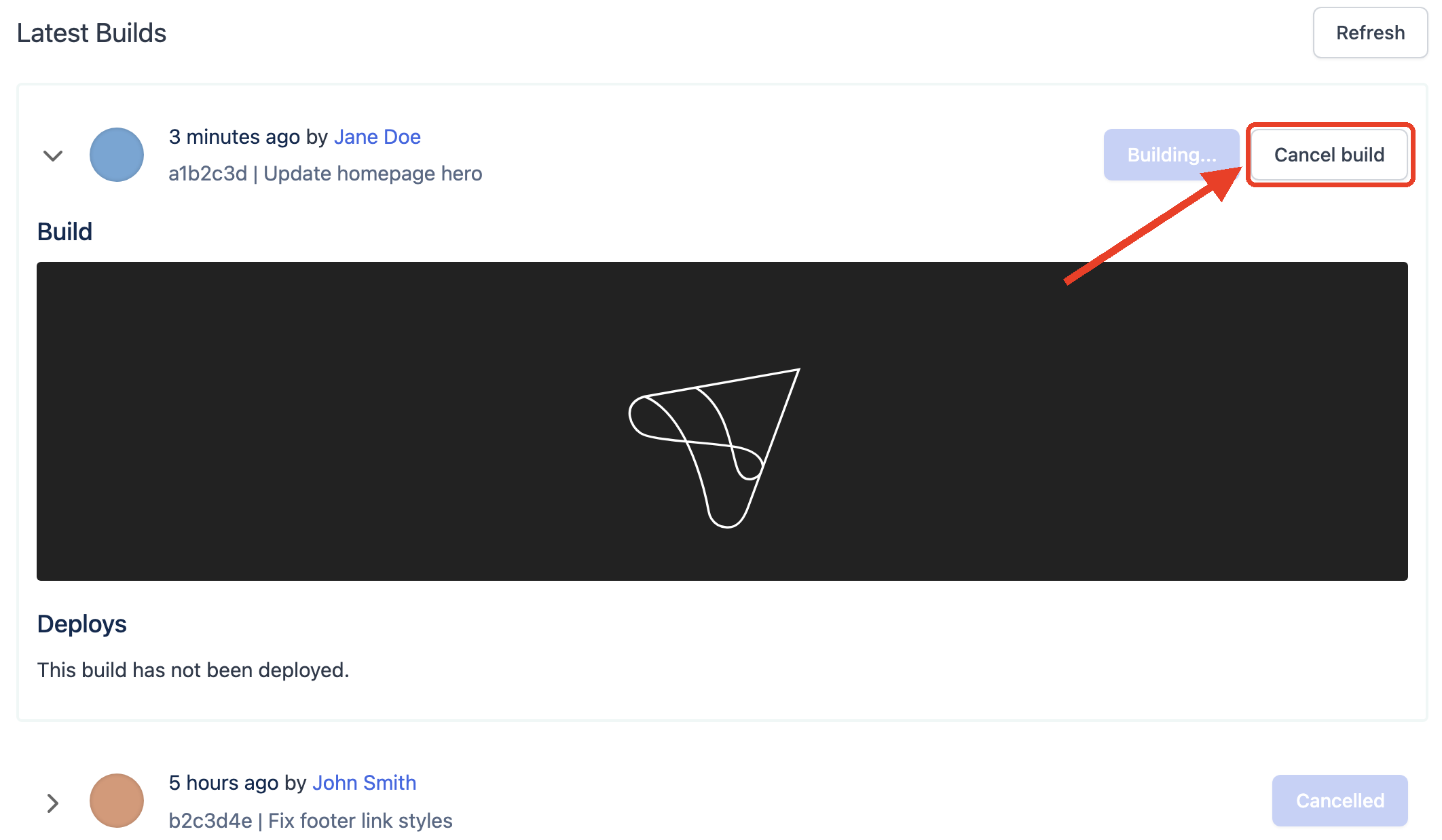
- In the Altis Dashboard, go to the Release tab of the environment.
- The in-progress build is expanded automatically under Latest Builds.
- Click Cancel build.
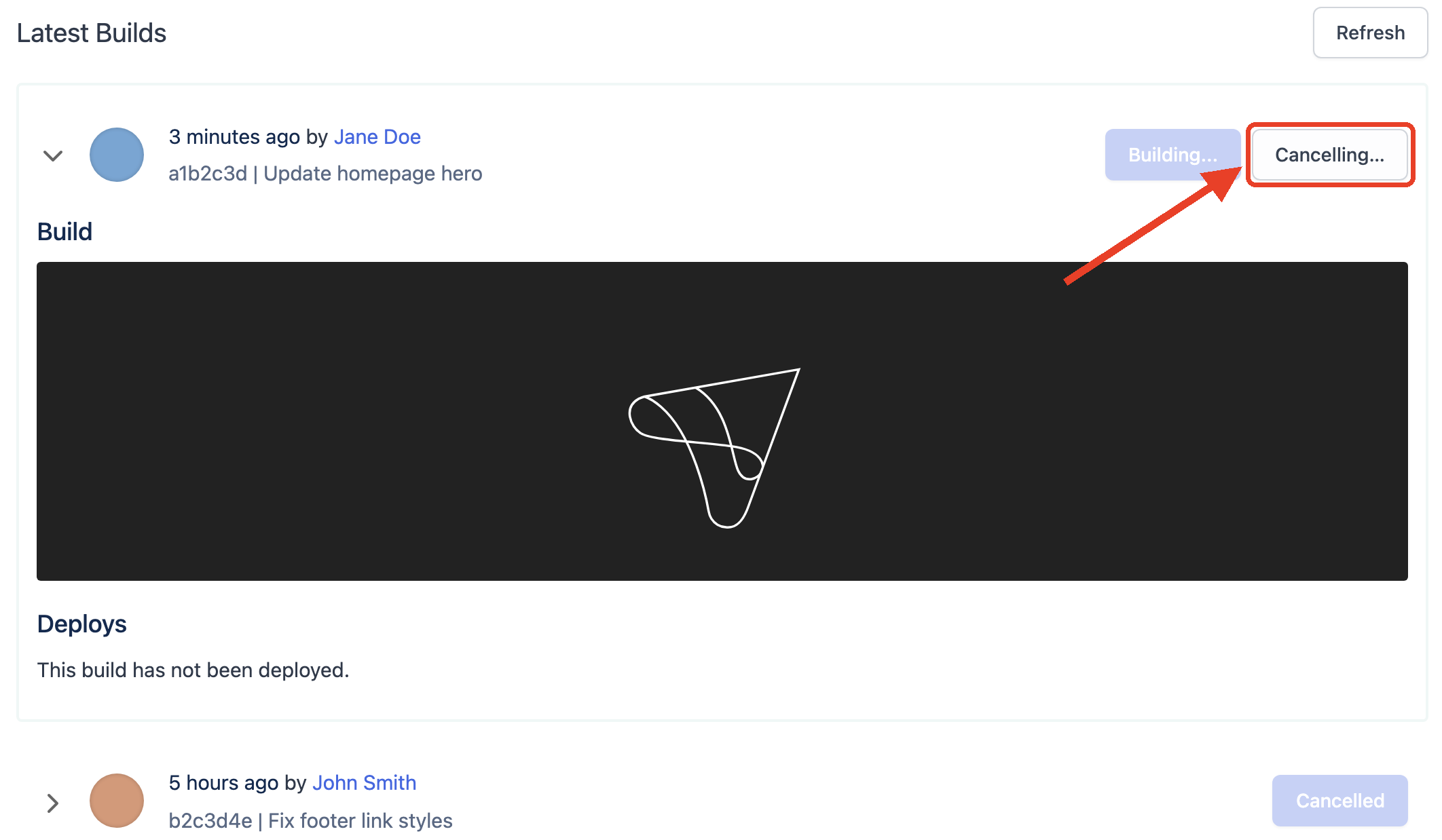
The button changes to Cancelling… while the build is stopped.
Once stopped, the build is marked as Cancelled and kept in the build history. Cancelled builds cannot be deployed. To build the branch again, expand Advanced actions and click Force Rebuild. This builds the latest commit on the branch.
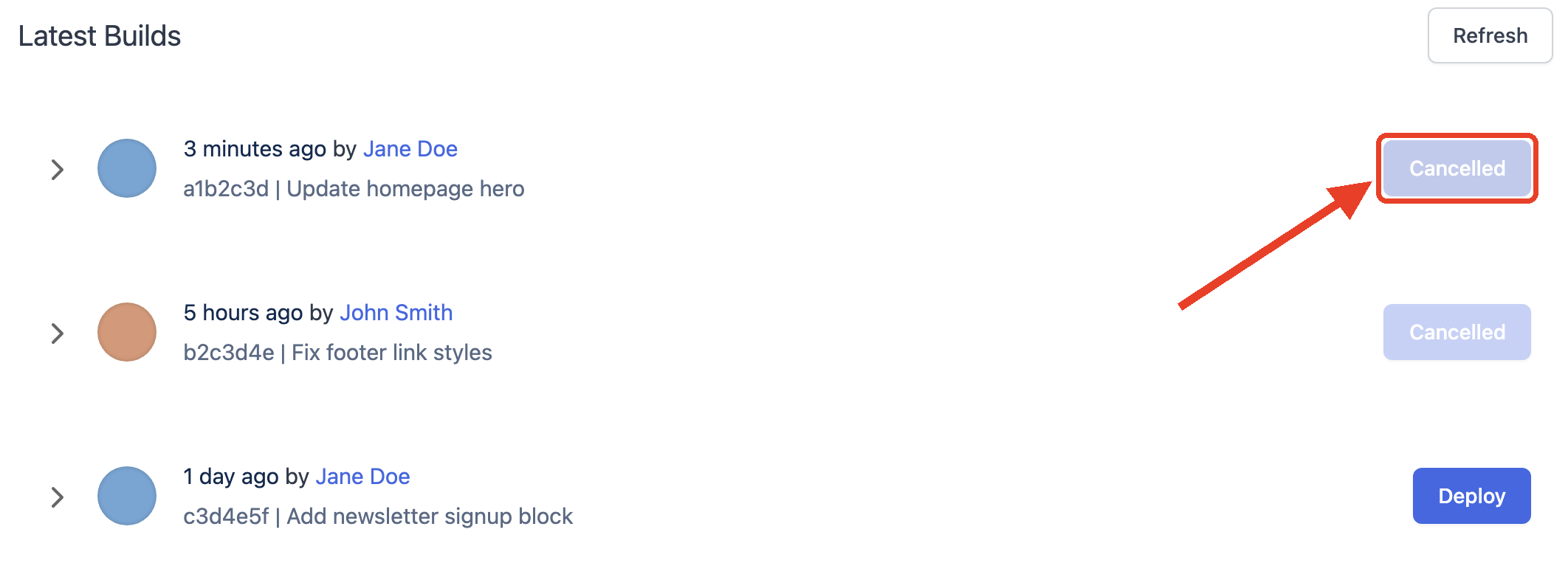
Note: The build is cancelled as soon as you click Cancel build, without a confirmation step. Cancelling a build does not affect the code currently deployed to the environment.
Cancelling builds requires the Developer or Admin role. See Teams for more information.